Backup Your Moodle Course
Voltooingsvoorwaarden
In this guide you can find information about saving and importing courses in Moodle. All instructors are advised to back-up their Moodle course contents, and archive student work and grades.The following topics are covered:
2. Create a Moodle Backup File (.mbz)
You must have the Teacher role in a course to create and download a Moodle Backup File.
- Log in to Moodle and open the course you would like to back up.
- In the menu bar at the top of your course page, select the Course Management icon (cog icon
 ),
and then from the dropdown menu select Backup (alternatively select Backup from the Course administration block)
- The first of several (5) backup pages will open. This is called the Initial settings page.
- On the Initial settings page, select which content to include and click Next. The Schema settings page will open.
- The Schema settings page lists content to be exported. Make any desired changes and click Next. The Confirmation and review page will open.
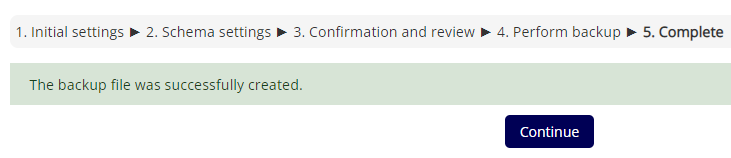
- In the File name field, you can rename the backup file (optional), then scroll to the bottom of the page and click Perform backup. When the backup is complete, you will see a confirmation message: "The backup file was successfully
created."
- Click Continue. the Restore course page will open.
- Scroll to the User private backup area. Your most recent backup file appears at the top of the list.
- To the right of the file name to download, click Download. (You may need to scroll right to view the link.)
Note: Do not select Restore here as this will simply restore your Backup in the Moodle course you just backed up.