Backup Your Moodle Course
| Site: | EURECA-PRO LMS - Course Management and Knowledge Exchange |
| Course: | Moodle Help for Instructors |
| Book: | Backup Your Moodle Course |
| Printed by: | Guest user |
| Date: | Tuesday, 24 November 2026, 4:22 AM |
Description
In this guide you can find information about saving and importing courses in Moodle. All instructors are advised to back-up their Moodle course contents, and archive student work and grades.The following topics are covered:
1. Moodle Backup Files FAQ
What is an .mbz file?
- A Moodle Backup File (.mbz) is a compressed archive of a Moodle course that can be used to restore a course within Moodle. The file preserves course contents, structure and settings, but does not include student work or grades.
- The contents of this file can be accessed exclusive by Moodle. You can import the file to another Moodle site or another course of this site.
What is included in an .mbz file?
Moodle Backup Files include:
- Resources (e.g., Files, Folders, Pages, etc.)
- Activities (e.g., Assignments, Quizzes and Quiz Questions, Questionnaires)
- Settings (e.g., Course Format, Theme, Course Completion settings, and settings for Assignments and Quizzes)
Moodle Backup Files do NOT include:
- Student enrollment
- Groups
- Guest Access settings
- Contributions to collaborative activities (Wiki, Forum, Glossary, Database, etc.) made by any course member, including the instructor
Why download a Moodle Backup File (.mbz)?
- Instructors can create and download an .mbz file of any course they teach to archive course Resources, Activities, and Settings for safekeeping.
- Because courses are removed from the Moodle server 12 months after
the end of the semester taught, it is a good idea to create a backup at
the end of each semester you teach a course.
- An .mbz file can also be used to restore a course on a different Moodle server (e.g., at a different institution).
- Note: When a course from a previous semester is still on Moodle, and you are using the same Moodle site, you can reuse its contents using the Import tool (see Reuse a Moodle Course Using Import). This is only possible for courses hosted on the same Moodle site.
Why should I also back up course content and student work, in addition to downloading an .mbz?
Manually backing up your course content can help you reuse course materials in future semesters and keep a record of your students' work. Because .mbz files cannot be used outside of Moodle and do not include student data, you should also manually back up course content, grades and student submissions in a form you can easily access on your own computer.
2. Create a Moodle Backup File (.mbz)
You must have the Teacher role in a course to create and download a Moodle Backup File.
- Log in to Moodle and open the course you would like to back up.
- In the menu bar at the top of your course page, select the Course Management icon (cog icon
 ),
and then from the dropdown menu select Backup (alternatively select Backup from the Course administration block)
- The first of several (5) backup pages will open. This is called the Initial settings page.
- On the Initial settings page, select which content to include and click Next. The Schema settings page will open.
- The Schema settings page lists content to be exported. Make any desired changes and click Next. The Confirmation and review page will open.
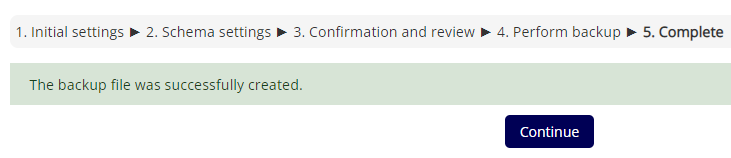
- In the File name field, you can rename the backup file (optional), then scroll to the bottom of the page and click Perform backup. When the backup is complete, you will see a confirmation message: "The backup file was successfully
created."
- Click Continue. the Restore course page will open.
- Scroll to the User private backup area. Your most recent backup file appears at the top of the list.
- To the right of the file name to download, click Download. (You may need to scroll right to view the link.)
Note: Do not select Restore here as this will simply restore your Backup in the Moodle course you just backed up.
3. Manage Backup Files Stored on Moodle
As described above, when you first create a backup, you can download the file. To access backup files at a later date:- Log in to Moodle and open a course for which an .mbz has already been created.
- In the menu bar at the top of your course page, select the Course Management icon (cog icon
 ),
and then from the dropdown menu select Restore (alternatively select restore from the Course administration block).
- This will open the Restore page where you can either import an. mbz file, delete, download or restore an .mbz file that you have backed up at an earlier stage
- To locate your backup files for the course:
- Scroll to the User private backup area. Your most recent backup file appears at the top of the list.
- To download a file, to the right of the file name to download, click Download (you may need to scroll right to view the link).
Note: Do not select Restore here as this will simply restore your Backup in the Moodle course you just backed up. - (Optional) Moodle provides additional options: click Manage Backup files (at bottom of list), then select the file of interest and choose to Download, Rename, or Delete it.
4. Import/Restore a Course from a Backup File
If a course is present on EURECA-PRO's Moodle, you can use the Import tool to copy it into an empty course for a new semester without creating an .mbz backup. Therefore, create an empty course, choose Import from the Course administration menu and then select the course you want to Import.