
Moodle Users Guide
Perfilado de sección
-
In this course we will describe how Moodle can be used as an asynchronous learning platform for Long-Life Education requirements.
-
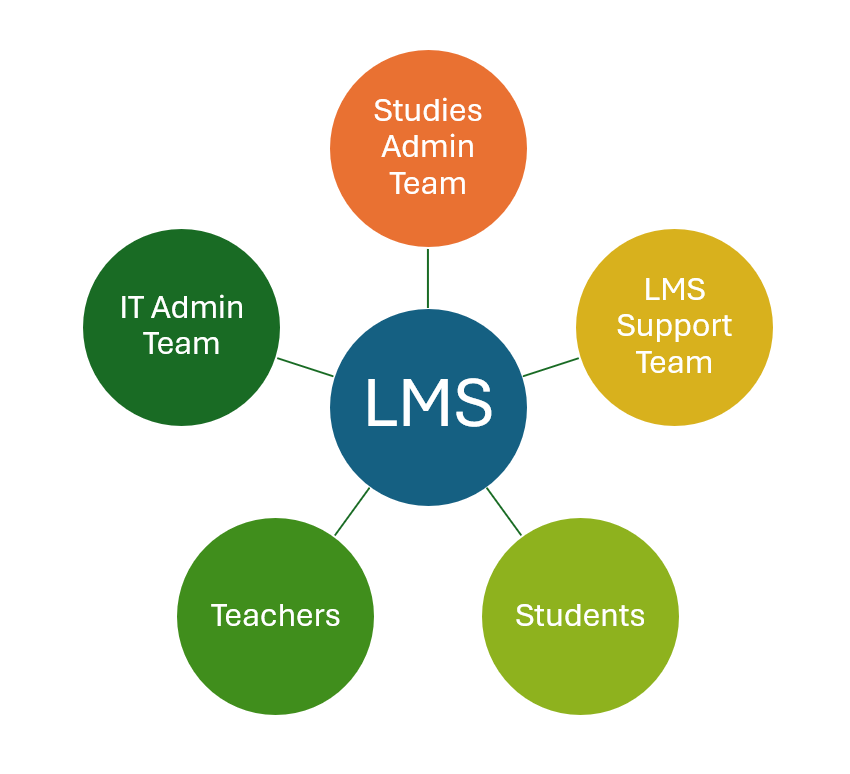
One of the basic education program categories in EP Allaince is Long Life Learning (ELLA), as shown below. In the following file you will find information about the basic educational programs categories in EP Alliance. Especially for ELLA, we can read about the basic user roles and how they interact inside the EP LMS.
-
The Professor (with instructor role) can view all her courses and specify the core settings for each course.
- the short and full name of the course
- the course category
- the visibility
- the starting and ending date
- the course summary (for the courses listing)
- the course image (for the courses listing)
- the course format and the appearance
- completion tracking
- tags
- other fields (University, Instructors etc)
-
From the Course Administration, enabling the Turn editing on, a professor (instructor) can modify the course structure and add activities and resources.
Resources are components that a teacher can use to support learning, such as a file or a link.
Moodle supports a range of resource types, but the most common are the following:
- Files (image, pdf, spreadsheet, a sound file, a video file etc)
https://docs.moodle.org/404/en/File_resource
- Folders, that organize files in groups
https://docs.moodle.org/404/en/Folder_resource
- URLs, for providing external links (external resources, zoom/team meetings etc).
https://docs.moodle.org/404/en/URL_resource
- Pages, for creating an extra web page with content similar to the topic.
https://docs.moodle.org/404/en/Page_resource
- Books, for creating a multi-pages resource with a book-like format and table of contents.
https://docs.moodle.org/404/en/Book_resource-
-
-
-
Ended: miércoles, 2 de octubre de 2024, 12:55Los estudiantes debenVerRecibir una calificaciónRecibir una calificación de aprobado
Lalala sad asdsa dasd asd as dasd sa dasd asd as das das dasdas das das das dsa dasd sad sad asd asd asd sad as d
-
-
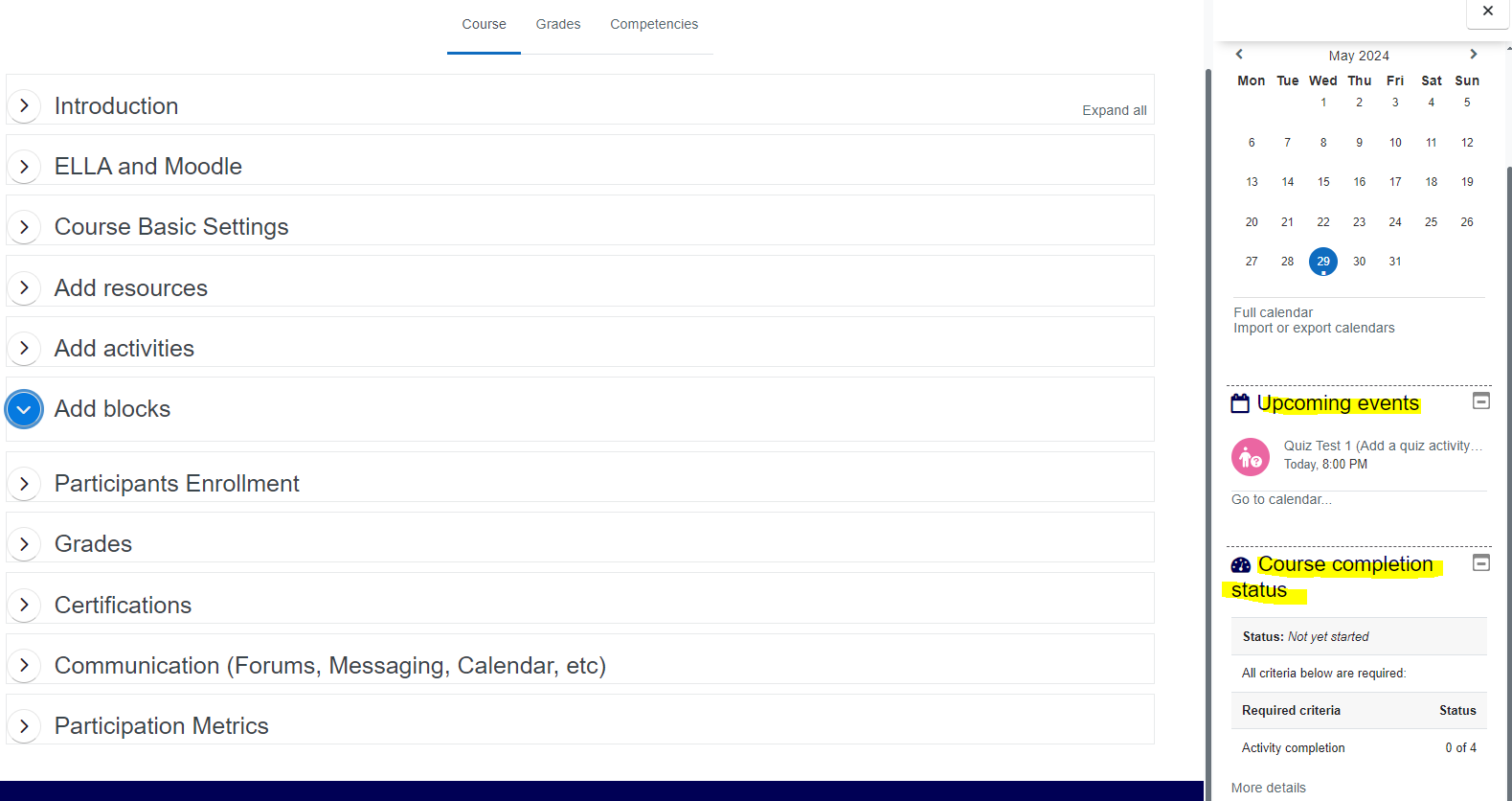
Blocks are items which may be added to the side inside the block drawer of any page in Moodle. Most interesting blocks for a course may be:
- Calendar, that contains events or deadlines for activities on specific dates
- Upcoming events, that contain specific deadlines or other events
- Course Completion Status, that displays the proportion of course completion
https://docs.moodle.org/404/en/Blocks
-
Enrollment is the process of adding existing Moodle users participants (teachers, students) in a specific course.
Each participant should have a user account in Moodle. This means that each participant should login with her (institutional or eurecapro) user account in Moodle at least once.
Teachers
- LMS Support Team firstly enrolls teachers with Instructor Role in a course to start developing it.
- After that, a teacher can view/activate/add/remove the Enrolment Methods within her course for her students
https://docs.moodle.org/404/en/Manual_enrolment
Students Enrollment Methods
ttps://docs.moodle.org/404/en/Enrolment_methods
- Self-Enrollment: Each member of EP can sign-up to the course herself. The teacher can restrict enrollment to those users who have given a specific enrollment key.
https://docs.moodle.org/404/en/Self_enrolment
- Manual registration: The teachers can add students to their course from the
Participants menu of the course. Once in the Participants page, student enrolment is possible by clicking the “Enrol users” button.
https://docs.moodle.org/404/en/Manual_enrolment
- Manual Bulk registration: The teachers can import from a csv file the enrolled students
https://docs.moodle.org/404/en/Manual_enrolment
- Course Meta Link: Τhis allows users who are in another course to be automatically enrolled into your course as well.
https://docs.moodle.org/404/en/Course_meta_link
-
Ended: jueves, 31 de octubre de 2024, 15:10Los estudiantes debenVerRecibir una calificaciónRecibir una calificación de aprobado
-
-
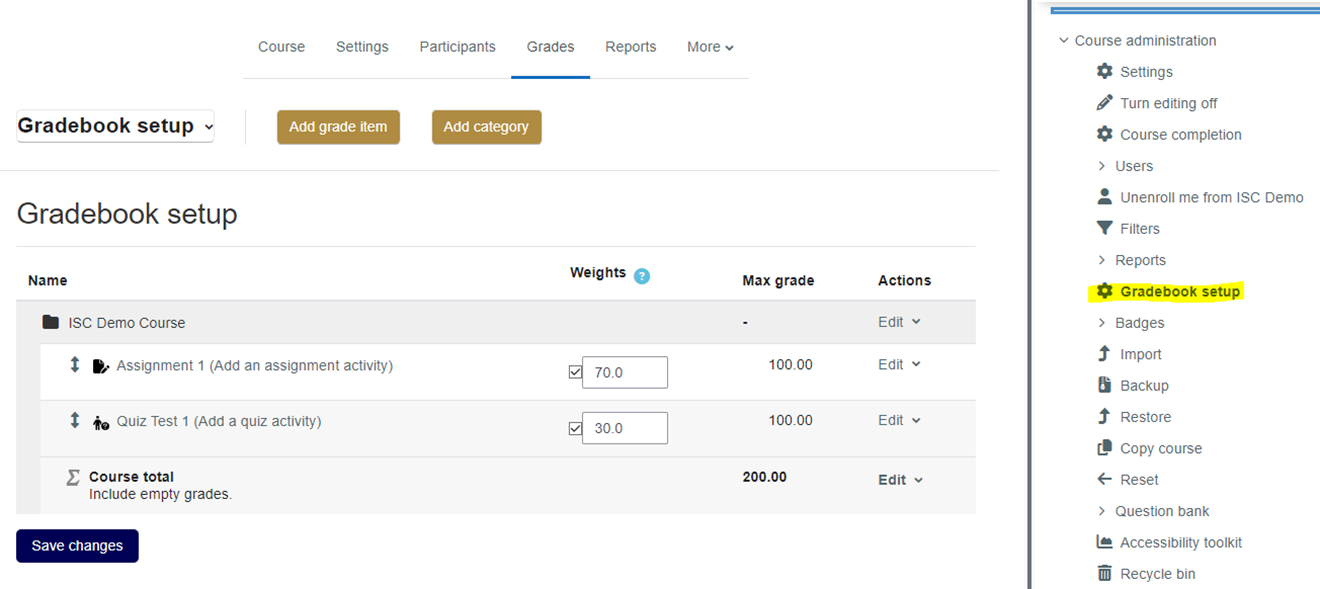
- Grades can be entered in multiple locations in Moodle. It will depend on what you are grading where the best place is to enter the grades.
- Teachers can enter grades inside the activities (for example from Assignment Activity or a Quiz with essay questions) or using the Grader Report (or Gradebook).
- Gradebook setup specifies the weights for each activity for the final grade
-
- Using the GradeBook: Some activities such as Assignment and Quiz send grades back to this gradebook. It is also possible for teachers to enter grades directly into the Gradebook
- Enabling Activities Completion. These may be viewing a resource, submitting an assignment, posting in a forum or other conditions. The teacher can see an overview of who has completed what in the activity completion report in Course administration > Reports > Activity completion
- Enabling Course Completion. It can show the progress a student is making towards finishing the course according to specific criteria. The criteria can include meeting an activity's grade level or a manual checking "complete" by either the student and/or teacher. From Course Administration > Course Completion specify the criteria (activities, resources, time period etc) and view the results from the Course Administration > Reports > Completion Report
-
Ended: martes, 1 de octubre de 2024, 15:13Los estudiantes debenVer
create a Zoom meeting
-
- Certificates are diplomas that can be issued upon completion of activities, courses, programs, etc.
- We can design, issue and verify digital certificates on completion of courses, programs and certifications.
- Students can view and access all their certificates from My Certificates.
- Add a Certificate using a Course Certificate Activity
https://docs.moodle.org/404/en/Course_certificate_activity
- Create a certificate template using Certificate Manager
https://docs.moodle.org/404/en/Certificate_templates
- Site-wide certificates can be created in Moodle Workplace (from 3rd party moodle certified partners), and certificates may be shared among tenants
https://docs.moodle.org/404/en/Certificates
