Configuring a Course Basics - Questions and Answers
This book contains FAQs about configuring a course in Moodle. In
Secton 3.1 you can watch an explanatory video with basic course
configuration information.
9. Track Student Activity - Course Generated reports
9.4. What is the completion activity report?
The Activity completion in Moodle is a tool that allows you to get an overview of student participation in all activities in your course. It is very flexible and highly configurable.
It involves 3 steps:
Step 1: Completion tracking should be enabled in the course settings (i.e., set to Yes).
Step 2: For the activities that you wish to
monitor, you should set completion criteria on an activity-by activity basis.
An activity can be tracked, either manually or automatically, based on certain
conditions. If you do not want to monitor a particular activity, you should choose the option 'Do not indicate activity completion" for the activity (edit activity settings, activity completion).
If you do not set any criteria per activity, all activities in your course can be manually marked as completed by the students. Students have just to click on the checkbox appearing next to the activity (note: they can do this even without doing the activity!).
If you wish to set criteria on an activity-by-activity basis, select the activity of interest and edit the activity completion settings appropriately. Multiple conditions may be set, if desired. For example, you can set that a student should ‘view’ the activity, for the activity to be marked as completed. A more complex set of settings could require, for example, a student to get a certain score in a quiz, if the activity is a quiz, for the activity to be marked as completed, submitting an assignment, posting a message to a forum, etc.
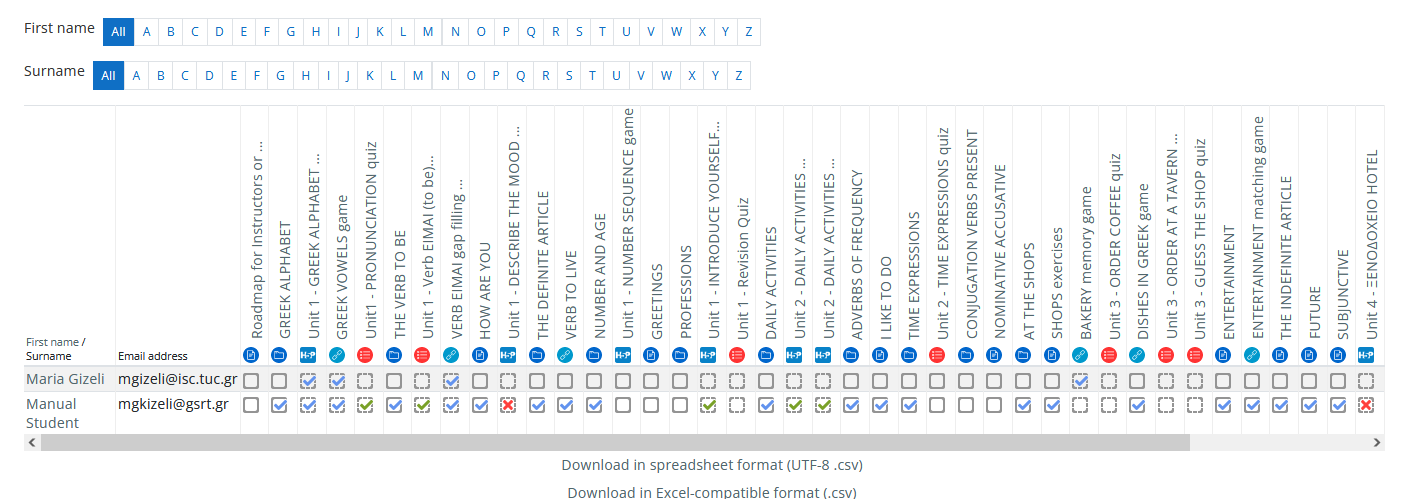
Step 3: You can now generate the report. The Activity completion report shows at a glance who has completed which task and who has not, i.e., shows for each student in the list which activities have been completed or not. The results can be downloaded in a csv or excel fie. An instructor can tick a task and mark it complete on behalf of the student!
An illustrative screenshot of the report available, for a course with two students enrolled, is shown below. Here you can see that the second student in the list has gone ahead of the other.