
Configuring a Course Basics - Questions and Answers
This book contains FAQs about configuring a course in Moodle. In
Secton 3.1 you can watch an explanatory video with basic course
configuration information.
4. How do students get enrolled in my Course?
4.1. User Bulk Enrolment
User bulk enrolment allows a course manager to manually enrol multiple users as students in a course simultaneously. This is especially useful for courses that do not use automated enrolment methods. In order to use this method, you must have a list of user email addresses that you can copy and paste into Moodle.
To bulk enroll users into a Moodle course:
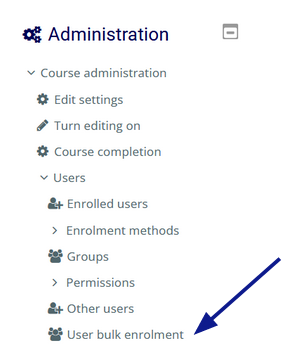
- In your course Administration block at the right of your course page, open the Users section and then click User bulk enrolment.
- On the user bulk enrolment page, enter the existing Moodle user
email addresses you wish to enroll, one email address per line, in the
text box. Note that the user must already have a Moodle profile (i.e., must have logged in at least once into Moodle) to be enrolled
through this tool.
Optionally, you are able to create groups and add the users to the groups as they are enrolled. To do this, add a heading line with a hash sign (#) and the group’s name to separate the lists of users.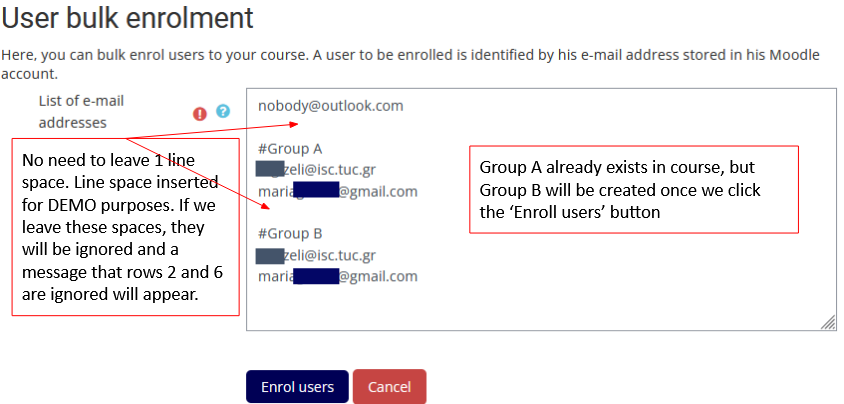
- Click Enroll users.
-
On the next screen, verify that the information is correct. If any email addresses are not associated with an existing Moodle user, you will see a hint that a new Moodle user account will not be created, and the email address will be ignored. All blank lines will also create a hint that these lines will be ignored. Separate notation will indicate whether a user has already been enrolled in the course.
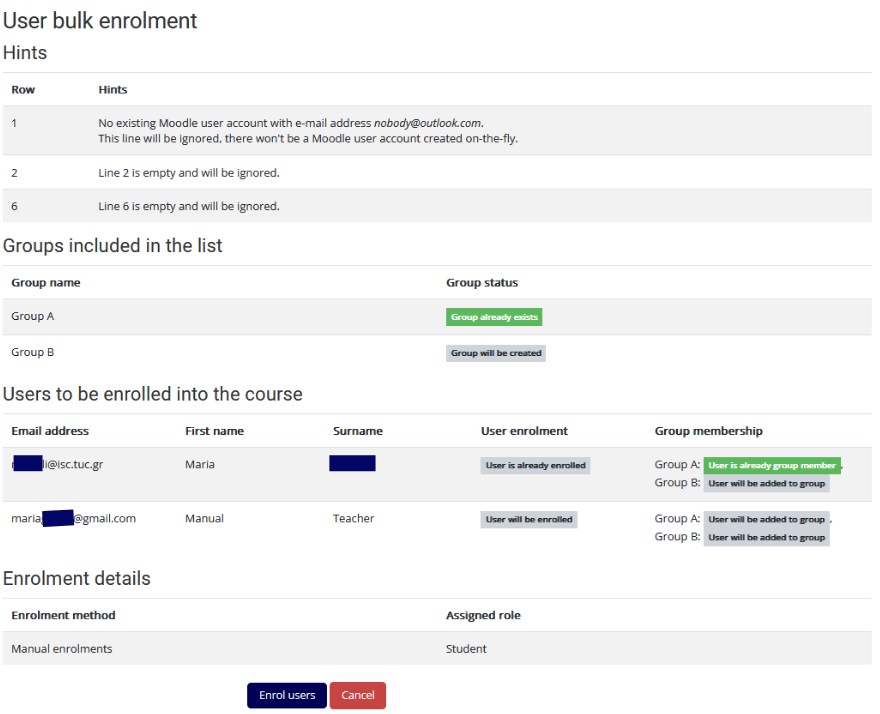
- Finally, click Enroll users.