Configuring a Course Basics - Questions and Answers
This book contains FAQs about configuring a course in Moodle. In
Secton 3.1 you can watch an explanatory video with basic course
configuration information.
3. Course Display and Organization in Moodle
3.3. Add course content: resourses and activities
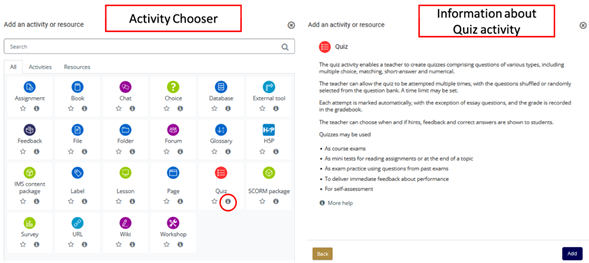
To add content under a particular section/topic (and with editing turned on), click +Add an Activity or Resource to open
the Activity Chooser. The activity chooser contains all types of resources and activities you can add to your course.
● Resources include static content, such as files, labels, and URLs. A quick way to add files to a course is to drag them from your computer desktop onto the specific section of your course page in the browser.
● Activities, such as forums, quizzes, assignments, and wikis, enable your students to interact with each other and submit work to instructors.
For information details on a specific resource/activity, you can click on the information icon of this resource/activity (within the Activity Chooser).