Configuring a Course Basics - Questions and Answers
3. Course Display and Organization in Moodle
3.1. Course Layout and Editing Course Sections
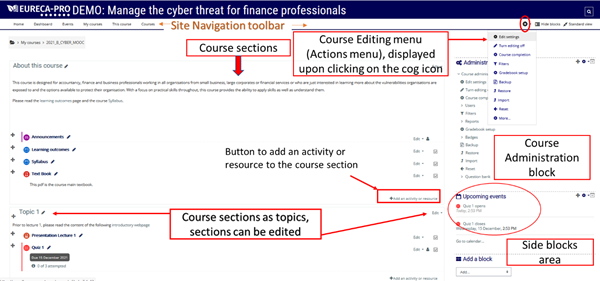
By clicking edit settings, the Edit course setting page loads where you can fill various fields. For example, you can hide your course (only you can see it), you can have start and end dates and decide the course format, that is the way the learning material is organized and displayed to students.
A course can display its materials in a number of ways or 'formats', for example in weekly sections or (named) topic sections. You can show all the sections at once or just reveal one
at a time. For courses that may have a lot of topics, you may consider using the 'tiles' format.
For more information on course formats and settings, please check the corresponding Moodle documentation:
https://docs.moodle.org/39/en/Course_formats (Course formats)
https://docs.moodle.org/39/en/Course_settings (Course settings)
For this Moodle site the default course layout is set to topics. To edit a particular course topic/section make sure that course editing is turned on (link on Course Administration block). Then, go to the particular course section and click edit-->edit Topic (on the top left of the section). You can change the name of the topic, add a description to explain what this section is about, and add access restrictions.Moodle Resources:
Moodle Academy: https://moodle.academy/course/view.php?id=35
Moodle Docs: https://docs.moodle.org/39/en/Course_settings