Configuring a Course Basics - Questions and Answers
4. How do students get enrolled in my Course?
4.3. Set up Guest access
The instructor of a Moodle course can configure the course settings to allow Guest access. Guests can view the course contents but cannot participate in any activity, view students' contributions or student data (e.g. names).
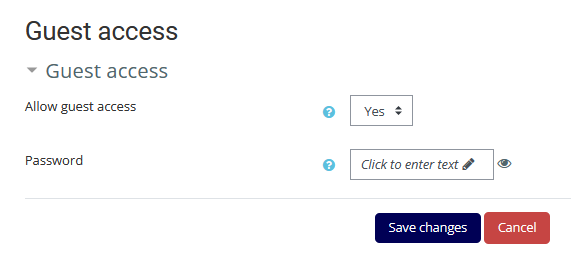
To enable Guest access, go to Course Administration-->Users-->Enrolment Methods and click on the eye for Guest access. If in addition, you want to set a password (recommended), you can do so by editing Guest access (click on the cog icon). The Guest access window will open, where you can set a password:
Caution: With a few exceptions, activities and blocks in Moodle that would reveal student identities are automatically closed to guests. If any of the following are used in your course, and Guest access is enabled, you may address the problem as follows:
- Comments block: Use a Forum activity instead or change permissions to prevent guests from viewing the Comments block in your course.
- Glossary and Database activities: These activities may reveal author's names. If students have contributed content to a Glossary or Database, you should change permissions to prevent Guest access.
For assistance with changing guest permissions to ensure that student
privacy is protected, contact the technical support.
- Moodle Docs on Guest Access.
- Video (Moodle Docs video - instructors version)